


Have you ever wondered what if your computer crashes while preparing a Word document? Accidentally saving over a Word document can be a distressful experience, especially when it contains important information. However, with the right Windows data recovery tools and techniques, you can easily restore the original document or at least a previous version of it. This guide will explain various methods to help you learn how to recover an accidentally saved over Word document effectively. So let’s get started!
Understanding the Basics of Word File Overwriting
Before you apply Windows data recovery methods to restore lost Word documents, it is important to understand how file versions and recovery work in MS Word. When any file is deleted on your Windows device, it is not permanently removed but the space your file was occupying will be made available for new files. When you save a new file on that device, it will overwrite the deleted document with new data.
However, Microsoft Office provides certain features for easy and quick recovery of Overwritten documents. These features include:
- Autosave: This feature automatically saves your work after a fixed time interval. If enabled, it can be a lifesaver as it creates a backup with recent changes or versions of your Word file.
- Temporary Files: Word creates temporary files while you’re working on a document. You can use these files to recover lost data in case of accidental or sudden deletion.
- Previous Versions: Windows and Microsoft Word can keep previous versions of files, which can be restored if you’ve saved over a document.
Quick Methods to Recover Accidentally Saved Over Word Documents
In this part of the blog, we’ve outlined various recovery methods, including Windows or Microsoft in-built features or third-party Windows data recovery software that you can try to restore saved over Word documents:
Method 01: Use Temp Folder to Recover Saved Over Documents
You can easily recover the previous version of your accidentally saved over Word document by using temporary files created by Microsoft Word. These files, typically stored in the Temp folder, can be used to recover your lost data. Follow the below steps to know how to recover an accidentally saved over Word document using the Temp folder on a Windows PC:
- Press the Windows + E keys to open File Explorer. Now type %temp% in the search box and press the Enter key to open the Temporary folder.
- Locate the files that start with ~ or end with .tmp. These are temporary files created by Word. Additionally, you may find files with extensions like .asd or .wbk, which are AutoRecover and backup files, respectively.
- Look for the temporary Word file that you want to recover, right-click on the file, and select Copy.
- Now, go to a safe location, right-click and select Paste, rename the file extension with .docx and save it.
Method 02: Recover Saved Over Word Document Using Backups
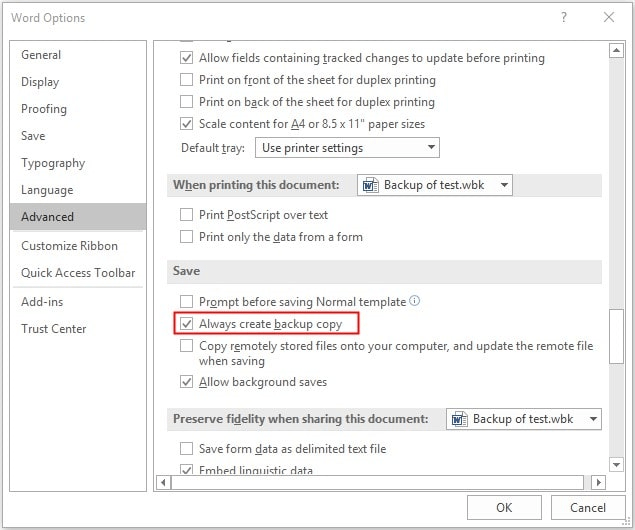
In addition to the temporary files, MS Word provides an in-built backup option that you can use to create backup of your Word documents and to restore them when data loss occurs. Once enabled, it will automatically start creating backup of your file in .wbk file format in the same location as the original file.
If you accidentally saved over a Word document, you can go to the same file location and open the .wbk file. Save it at a safe location with .doc or .docx file extension.
Method 03: Recover Saved Over Word Documents from OneDrive
Another backup alternative that you can try to recover an accidentally saved over Word document is via cloud storage backup services, like OneDrive. If you have synced your OneDrive account to your Windows device, it will get the saved over Word doc back easily. All you have to do is:
- Open OneDrive or log in to your OneDrive account using any web browser. Find the required Word document, right-click on it and select Version history.
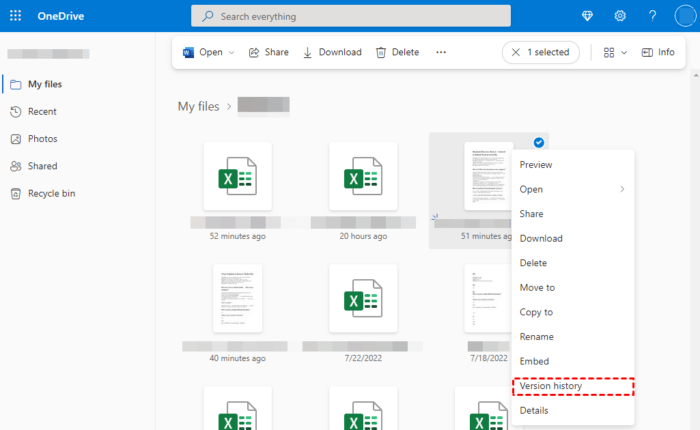
- Now, select the required older version and download or save it in a safe location.

That’s it! Once you are done with recovering saved over Word document using OneDrive, open it from where you’ve saved it. If you cannot open, it’s time to use a Windows data recovery software.
Method 04: Use Data Recovery Software to Recover Saved Over Word File
Instances may occur when the above fixes fail to recover your saved over Word document. In such cases, you can use Windows data recovery software, i.e., Stellar Data Recovery Standard, which supports recovery of your lost Word files in a few simple clicks. The software is known for several amazing features, which makes it a versatile data recovery tool for Windows and Mac devices.
The Stellar Data Recovery Standard supports recovering deleted or lost files of any type, including Word files, photos, videos, documents, and many more in three steps. Here’s how to recover an accidentally saved over Word document using this tool:
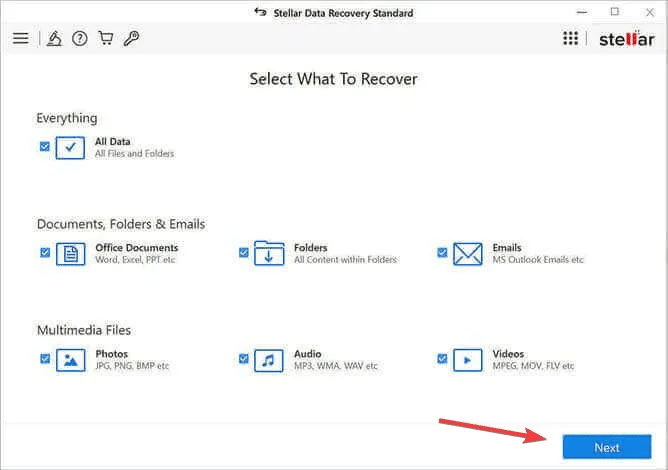
Step 1: Start by downloading and installing the Stellar Data Recovery Standard tool on your Windows device. Launch the software and from the homepage, select Office documents (as you have to recover lost Word files) and click Next.
Step 2: Now, select the folder drive where your deleted Word document was stored and click Scan.

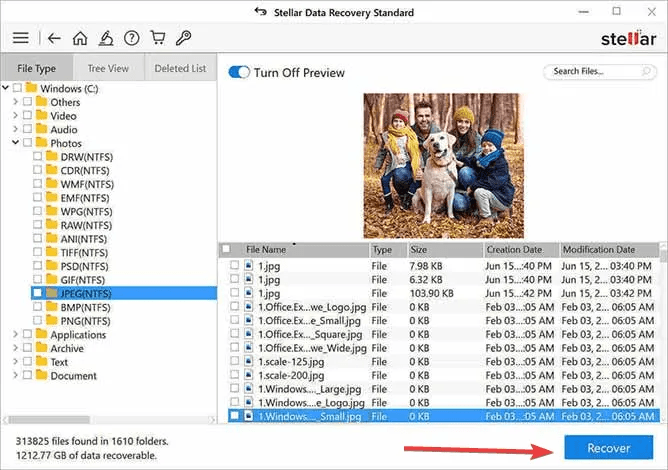
Step 3: After completion of the scanning process, click the Recover button to save recovered data at the desired location.
Wrapping Up
If you encounter issues like the deletion of an accidentally saved over Word document, start implementing the above tools and techniques to recover the lost content. By leveraging features like AutoRecover, previous versions, and Windows data recovery software like Stellar Data Recovery Standard, you can maximize your chances of restoring your valuable work. Additionally, you can adopt preventive measures like maintaining regular backups, installing Anti-virus software, etc. can help safeguard your documents against future incidents. Always remember that the key to effective data recovery lies in quick action and using the appropriate methods for the situation.