

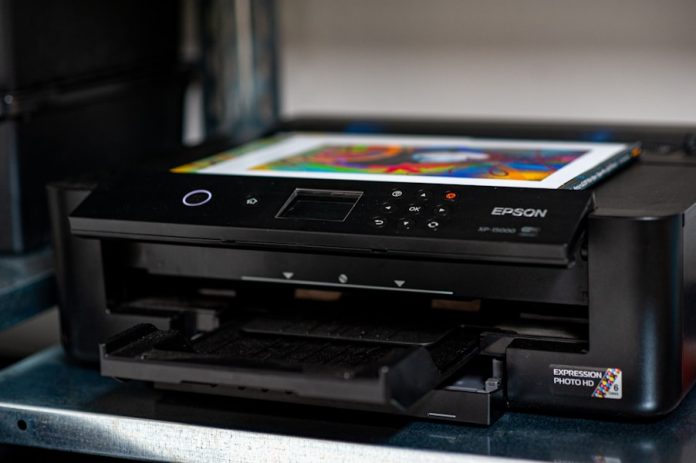
There’s hardly anything more frustrating than hitting print on an important document only to have your printer flash up a message saying the printer ink is empty, when you know there’s still plenty left.
To understand why this happens, we need to look at how modern printers “think” about ink, and what the common triggers are.
How Printers Track Ink Levels
Most printers don’t actually measure the amount of ink left inside a cartridge. Instead, they estimate it based on how much ink has been used during printing. This estimate comes from internal software that keeps count of print activity.
The estimation is usually reasonably accurate but it’s not perfect. Some factors that affect it include:
- Print density: Pages with large, dark areas (like photos or graphs) use more ink than plain text.
- Printer model: Different brands and models use different algorithms.
- Cartridge type: Remanufactured or third-party cartridges sometimes don’t communicate perfectly with the printer.
Common Reasons the “Ink Empty” Message Appears
Here are the main causes you’re likely to come across:
1. The Printer Uses an Estimated Ink Counter
As mentioned earlier, the printer’s software predicts when ink will run out. When that estimate hits zero, the warning pops up, even if there’s still measurable ink left.
This happens more often with ink cartridges that hold larger volumes (like high-yield cartridges). They can still have ink, but the counter has reached its programmed limit.
2. The Cartridge Chip Isn’t Communicating Properly
Most printer cartridges have a small “chip” that tells the printer what model it is and how much ink it has used. If that chip has a glitch, particularly with compatible or remanufactured cartridges, the printer might read the cartridge incorrectly.
Sometimes a simple cartridge reseat (taking it out and putting it back in) can fix communication errors.
3. Printer Firmware Misreads Cartridge Information
Printer firmware is the software that runs the device. Occasionally, firmware updates or mismatches can cause incorrect ink level readings.
If your printer recently updated, or if a replacement cartridge is newer than the printer, it can lead to false readings. In some cases, the printer might think a full cartridge is empty because it’s not recognised properly.
4. The Printer Is in a Safety Mode
Some printers are designed to stop printing once the ink level reaches a certain threshold to protect the printhead. From a manufacturer’s point of view, this makes sense, it reduces the chance of damaging expensive hardware by running too low on ink.
How to Know if the Cartridge Is Really Empty
Here are a few ways to verify:
- Print an ink usage report/page: Many printers let you print a diagnostic page showing usage.
- Look at print quality: If text or images are still sharp with no streaking or fading, the ink might not actually be empty.
- Shake the cartridge gently: Some cartridges still have ink even when the level indicator is empty. Shaking can help redistribute a small amount of ink that’s stuck at the bottom.
- Use printer software tools: Manufacturers often provide utilities on your computer that show ink status in more detail than the printer screen.
Steps to Fix the Problem
If your printer says “ink empty” but you know there’s still ink, try these practical fixes:
1. Remove and Reinstall the Cartridge
Turn the printer off, open the cartridge cover, gently remove the cartridge and then put it back in place. Ensure it clicks securely. Turn the printer back on and see if it now recognises the ink level correctly.
This reset can force the printer to re-read the cartridge chip.
2. Update or Roll Back Firmware
Check the manufacturer’s website for firmware updates. Sometimes a new update fixes recognition issues with certain cartridge brands.
On the flip side, if the problem started after a firmware update, rolling the firmware back (if possible) can solve it. Be cautious here, only attempt this if you’re comfortable with firmware changes.
3. Clean the Cartridge Contacts
Turn the printer off and remove the cartridge. Using a lint-free cloth or cotton bud lightly moistened with water, gently clean the electrical contacts on the cartridge and inside the printer.
Dry them thoroughly before reinstalling.
4. Try a Different Cartridge
If you have another cartridge of the same model, try swapping it in. If the new cartridge also shows “empty”, the printer is likely at fault. If the new one shows correctly, the original cartridge might have a chip problem.
5. Override the Ink Empty Message
Some printers allow you to continue printing even when the ink-empty warning appears. This can usually be done via your printer’s software on your computer. Consult your manual or support site for exact steps, as it varies by brand.
Be careful though, this should only be used when you genuinely know there’s enough ink left to finish a job.
How to Avoid This Issue in Future
These steps help minimise repeated “false empty” messages:
- Use cartridges with accurate chip data (especially from reputable suppliers).
- Update printer drivers regularly.
- Avoid storing cartridges in extreme heat or cold.
- Try to print a mix of text and lighter graphics rather than heavy, full-page photos if you want the ink level estimates to be more reliable.
Final Thoughts
A printer telling you the ink is empty when it clearly isn’t can be a mix of inconvenience and waste. But once you understand why it happens and how to troubleshoot it, you gain control of your printing experience.
Whether it’s a simple cartridge reseat, cleaning contacts, or adjusting firmware settings, there are practical ways to keep printing smoothly without paying for ink you haven’t actually used.