

Music touches our hearts, but knowing the words makes the bond even stronger. Most people want to sing along with their favorite songs while watching them. A good lyric video maker helps you share these words beautifully.
Many individuals feel confused about which tool to use or how to start. The right software can save time and make your video look good. You do not need to be a tech expert to create great videos today. This guide shows you the best tools to start your new creative journey.
Part 1. Lyric Video Creator Features That Improve Video Quality
Making a professional song clip is easy when you use a lyric video creator. Below are the main features that make lyrics readable and visually appealing:
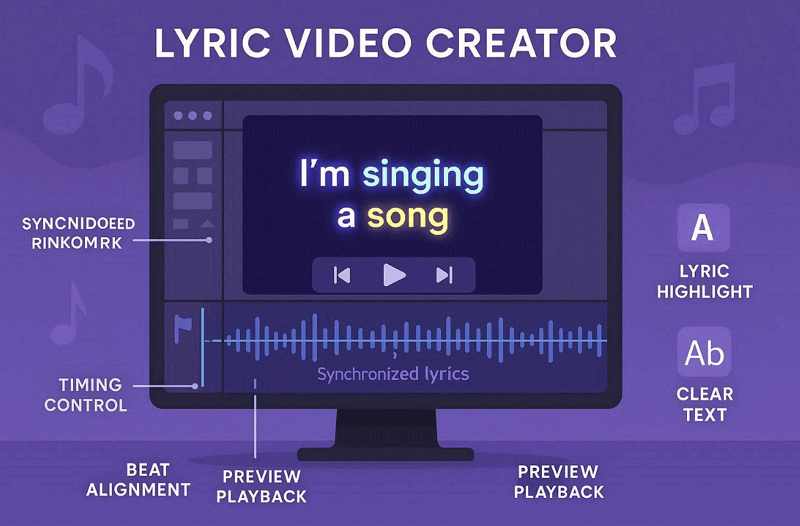
- Timing Control: Lyric video creator allows word-by-word sync for perfect alignment with the song. This tool helps the text appear at the exact moment the music plays.
- Beat Alignment: Waveform timelines show where lyrics match song beats for easy placement. A good lyric video maker helps align transitions smoothly for a consistent video flow.
- Preview Playback: You can watch the video to ensure that the lyrics come at the right time. This eliminates errors and ensures that everything said is in exact agreement with the audio.
- Highlighting Effects: Karaoke-style word highlighting shows which word is sung in real-time. The tool keeps viewers focused on the current singing section.
- Text Visibility: Shadows, backgrounds, or gradients keep lyrics visible on busy scenes. High-contrast options prevent text from blending with colorful video footage.
Part 2. Best Lyric Video Maker Tools for Beginners and Creators
Many creators look for a lyric video creator that is simple, fast, and easy to use. Let’s explore the best lyric video maker tools for beginners and creators today:
1. Wondershare Filmora
Filmora is the best choice for editors who want attractive results when creating video lyrics. This dedicated tool automatically generates lyric lines from vocals for quick AI-driven lyric video creation. Its smart algorithm detects rhythm patterns and helps lyrics appear exactly when the music changes naturally. A preview playback lets creators check lyric timing before exporting the final video.
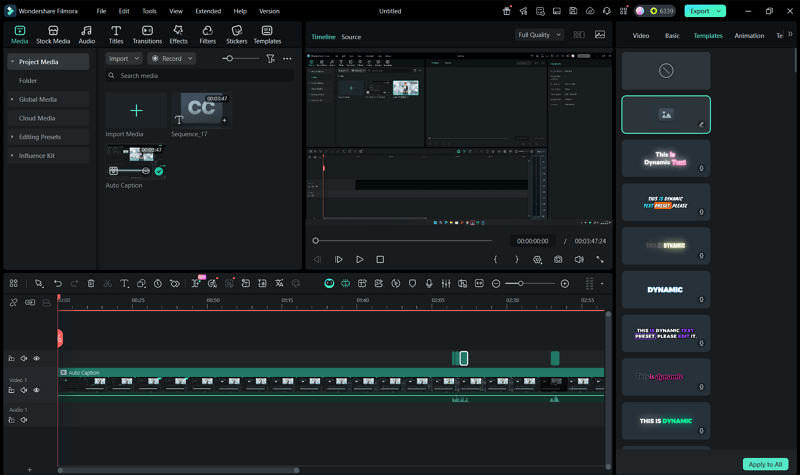
This video editor for PC allows duplicate title clips to be created with multiple lyric lines while keeping a consistent text style. You can automatically translate lyrics into 36 languages to reach viewers worldwide easily. It presets animate lyric text automatically without requiring manual keyframe animation adjustments. Moreover, Filmora automatically detects lyric language across 57 languages to generate accurate transcriptions.
Pros
- Opacity settings adjust lyric transparency to blend smoothly with video backgrounds.
- Dynamic captions highlight words while singing, creating clear karaoke-style lyric videos.
- Fast rendering exports lyric videos quickly while maintaining clear audio and sharp visuals.
Con
- AI captions sometimes create errors, requiring manual correction for perfect lyric accuracy.
2. TunePrompter
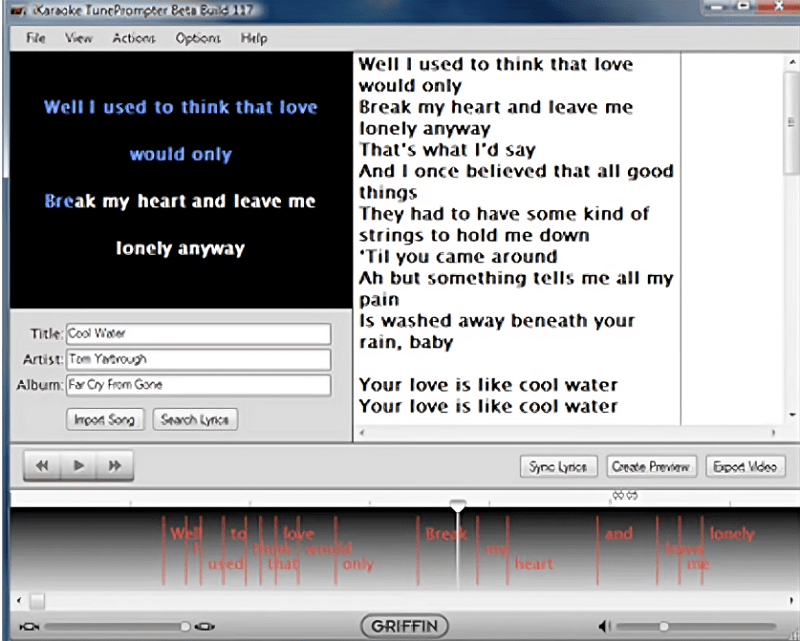
You can also use this karaoke lyric video tool that supports importing MP3 and QuickTime-compatible audio files to create lyric video projects. Also, its real-time tapping method helps users practice accurate lyric synchronization. Users can adjust resolution options to balance quality and video file size. The built-in “Search Lyrics” tool finds song lyrics online and lets users copy them directly.
Pros
- Basic text formatting tools adjust font size and layout for a readable lyric display.
- Preview playback helps check lyric timing before exporting the final video file.
- Built specifically for karaoke lyric videos with a clear workflow from song to export.
Cons
- Requires instrumental karaoke tracks because original songs cause overlapping vocals during lyric playback.
- No advanced timeline editing tools for complex lyric synchronization or visual control.
3. Aegisub
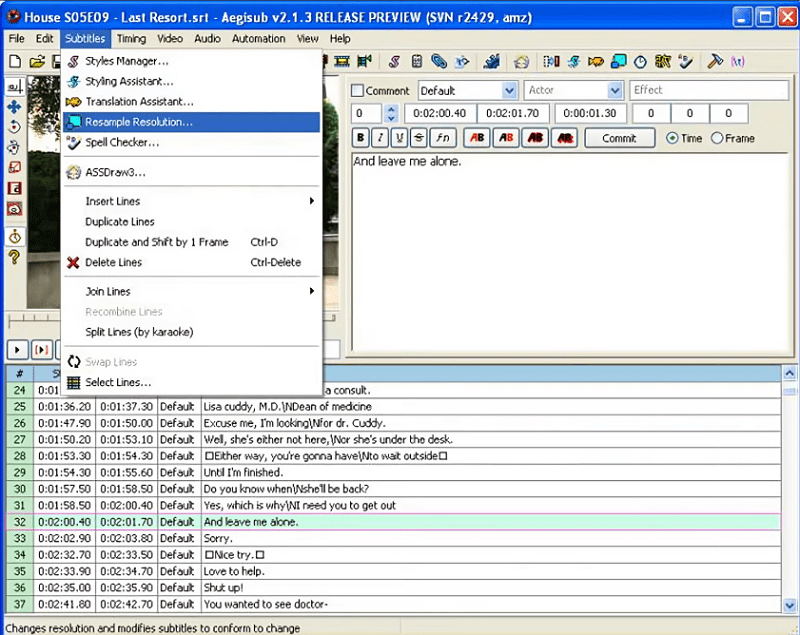
This is another lyric video generator that automatically positions lyrics based on coordinates to keep text consistently aligned. Its post-processing tools refine lyric timing for smooth, professional karaoke video results. A waveform display allows precise timing of each lyric syllable for accurate karaoke videos. The subtitle timing by timecode ensures each lyric line appears exactly when needed. Aegisub handles variable-frame-rate videos for accurate lyric timing across different video sources.
Pros
- Karaoke Templater scripts allow automated per-syllable animations, fades, and color effects.
- Built-in video preview shows styled lyrics over footage while editing in real-time.
- Audio spectrum helps see beats and vocal peaks for exact lyric alignment visually.
Cons
- All lyrics and timing must be manually created; no AI automatic captioning exists.
- No built-in automation to speed up repetitive tasks or lyric line generation.
4. AV Video Karaoke Maker
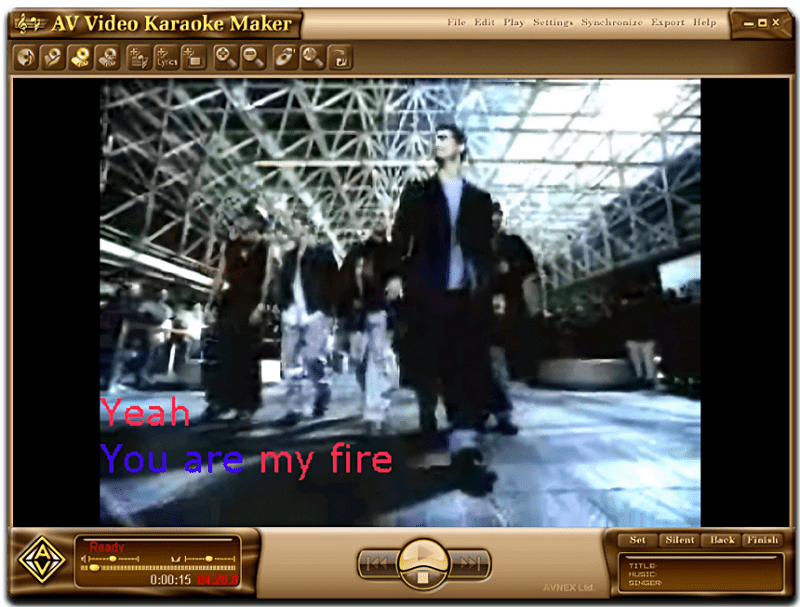
The AV Video Karaoke Maker supports many different file formats, including WMV and BMP. Its built-in editor allows typing or pasting lyrics and organizing them line by line. You can drag lyric lines onto the waveform for accurate timing with song audio playback. This lyric video creator supports importing RTF or plain-text lyrics to facilitate synchronization with audio. A current lyric line is emphasized while other lines remain static for clarity.
Pros
- Lyrics change color in real time during synchronization to indicate active lines.
- Zoom in on the waveform for precise adjustments and better synchronization of lyrics.
- Built-in editor allows typing or pasting lyrics and organizing them line by line.
Cons
- No AI auto-captions or automatic lyric detection; all text and sync must be manual.
- Lacks translation or multi-language features for creating lyric videos in other languages.
5. Crazy Video Maker 2
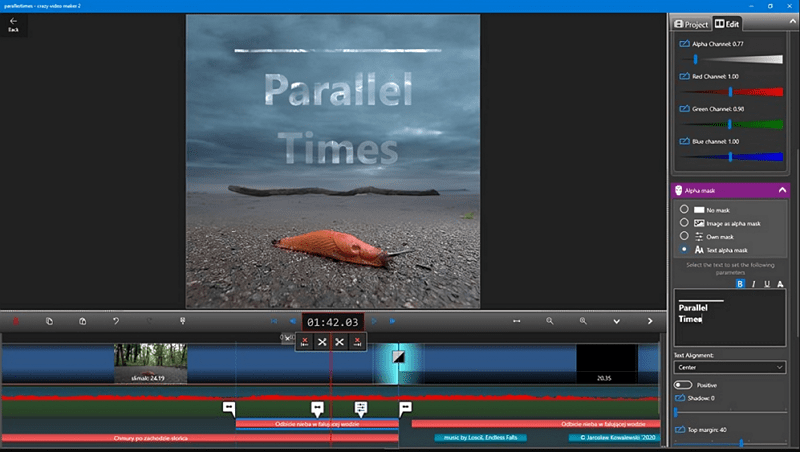
Editors can also try this lyric video maker to duplicate text objects to repeat lyric lines without manually recreating each one. It has a huge selection of text styles that allow creative placement of lyric lines anywhere on videos. You can apply color transformations to backgrounds to make the lyric text more readable and clearer. A Chroma key feature lets creators overlay lyric text on green-screen or pre-rendered backgrounds.
Pros
- Directly upload finished lyric videos to YouTube from within the application.
- Align text to music beats and vocals for accurate and visually synced lyric timing.
- Apply effects individually to lyric layers without affecting background or other media tracks.
Cons
- There are no specific karaoke effects, such as highlighting of words or animated lyric templates.
- The timing of lyrics may be time-consuming in long songs with a lot of lyric lines.
Part 3. Top Lyric Video Generators Compared: Features, Pricing, and Ease of Use
When choosing the right tool, finding a lyric video generator AI can save hours of editing. Review the table below to compare features, pricing, and ease of use across options:
| Tool | Filmora | TunePrompter | Aegisub | AV Video Karaoke Maker | Crazy Video Maker 2 |
| Features | AI lyrics, 60+ effects | Import audio, search lyrics | Waveform, per-syllable timing | Drag-sync, waveform view | Layer text, duplicate objects |
| AI Automation | Auto captions & translation | No AI, manual sync | No AI, Lua scripting | No AI | No AI |
| Timing Accuracy | Auto timing, dynamic captions | Spacebar real-time sync | Manual syllable sync | Drag-and-drop sync | Manual timing only |
| Styling & Effects | Typewriter, Neon, audio-driven | Basic font & layout | ASS/SSA, fades, motion | Color-change line, zoom | Filters, transitions, per-layer |
| Export Options | Full HD/4K, multi-platform | iPod, iPhone, QuickTime | External encoder needed | AVI, WMV, HD formats | Full HD/4K, YouTube upload |
A Detailed Guide to Generating Lyrics Using Wondershare Filmora Without Effort
Creating professional lyric videos can feel tricky, but learning how to make a lyric video is easier than ever. Let’s explore the steps in Wondershare Filmora to generate lyrics quickly and effortlessly:
Step 1. Import a Video
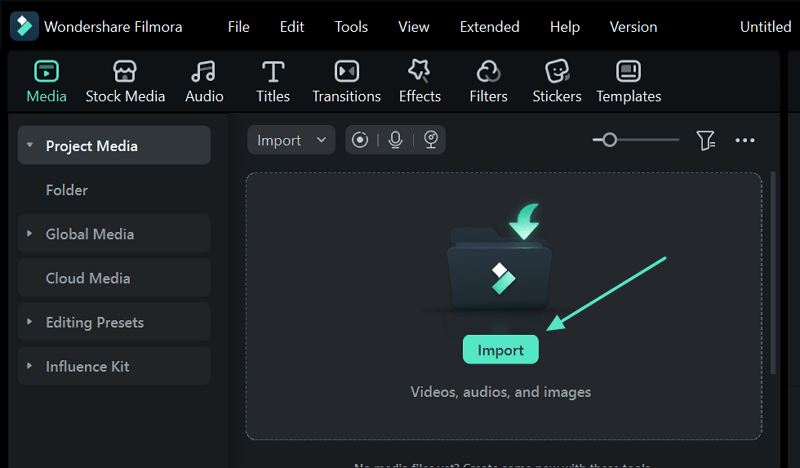
To initiate, create a “New Project” and click on the “Import” button to add a video.
Step 2. Generate Lyrics for Imported Video
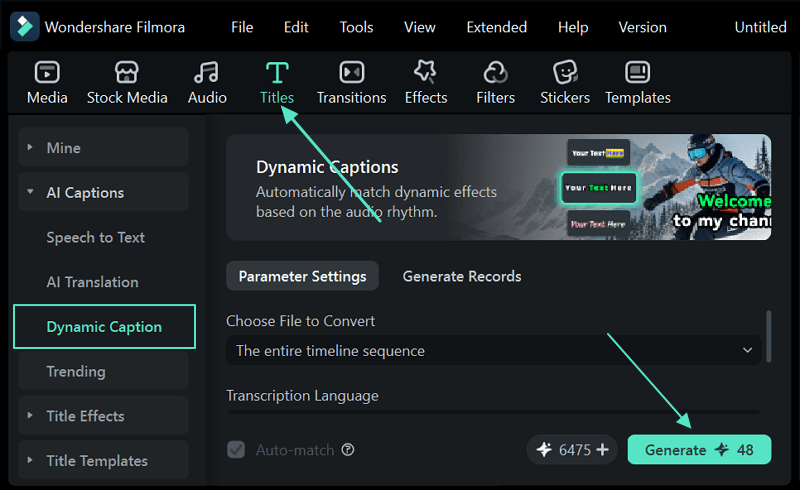
After adding a video, opt for the “Titles” section and choose the “Dynamic Caption” option, then press the “Generate” button.
Step 3. Preview Generated Lyrics in Filmora
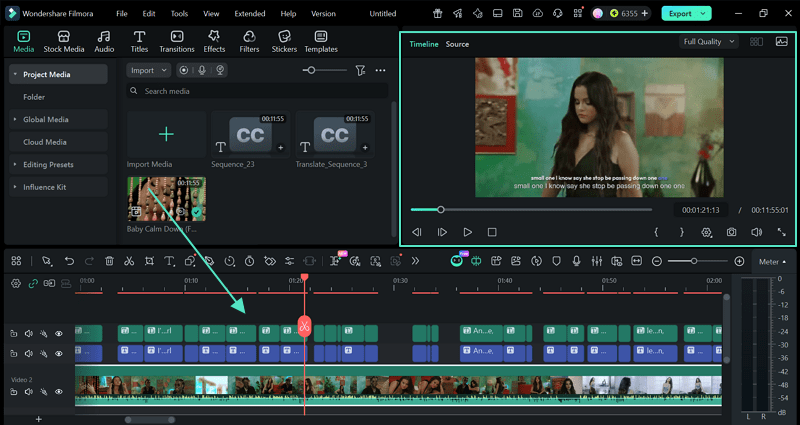
After creating lyrics, review them carefully for clarity before exporting the final video. Select the captions to access its settings on the right and make further changes as required.
For seamlessly adding lyrics to your video, Filmora provides the best options integrated with AI functionality. Download Filmora now for an exclusive experience of adding lyrics to your video with AI.
Conclusion
Sharing your favorite music with the world is a very fun and creative hobby. You now know the best ways to show song words on a screen for everyone. Picking a good lyric video maker makes the whole process easy for you. Above all, you want your projects to look clean and professional. Therefore, you should try Filmora to create amazing videos with just a few clicks.